All posts by misbit
Illustrator Challenges
Days 3 & 4: Fill a Shape with Text
Skills you need to learn/practice:
Examples:
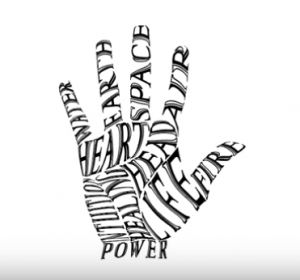
STEPS:
- Layer one – shape
- Layer two – text (below)
- Highlight and select both
- Select Object > Envelope Distort -> Make with Top Object
- Select Edit envelope
- Use Direct Selection tool
- Find an anchor and start pulling

STEPS:
- Create text
- Adjust font as desired
- Use Selection tool
- Right-click -> Create Outlines
- Select Object -> Envelope Distort -> Make mesh -> 3X3
- Move into place with Selection tool
- Adjust with Direct Selection tool
Days 1 & 2: Spirograph Challenge
- #10MinSkills: Spirograph
- Use Color Calculator to pick color scheme for your spirograph
Graphic Design 2
Photoshop Challenges
Day 1:
- Things Beginners Want to Know How To Do video tutorials
- Touch up photos
-
-
-
- Understanding Layers
- Crop photo
- Exposure and color
- Removing object from photo
- Removing object with quick select tool
- Adding image to different background
- Real or Fake?
- Export your design and upload to your padlet and reflect.
-
-
Days 2-6
- Showcase three effects: Low poly geometric effect & background changes & particle dispersion effect
- Low poly geometric effect – long

- Student example – Low poly geometric effect
- Background removal and changes – great Photoshop tutorials on his channel

- Student example – Background changes
- Particle dispersion effect – long

- Particle dispersion effect – short
- Student example – Particle dispersion effect
- Pick a picture you can alter.
- Open photoshop and follow one of the above tutorials.
- At the end of each day, be sure to take a screenshot of your work so far and reflect on your padlet. It would be great if you can show the progression of your project on your padlet.
- Also be sure to save your work in photoshop under your folder on your computer.


Graphic Design 1
Logo Challenges
Days 5 & 6:
- Beginning Graphic Design: Branding & Identity
- Complete the Logo Design Worksheet
- Begin working on your logo in Illustrator
- At the end of each day, be sure to take a screenshot of your work so far and reflect on your padlet
- Also be sure to save your work in Illustrator under your folder on your computer.
Days 2, 3 & 4:
- How to create a logo: part 1
- Pick a food and find an image that you can deconstruct.
- Open Illustrator and select Print for profile. Also make sure orientation is landscape.
- Select File – > Place to add your food image.
- Lock this layer in place by selecting Window -> Layers -> click to lock layer.
- Then click Create New Layer button.
- Go on to How to create a logo: part 2, part 3, part 4, part 5, part 6
- At the end of each day, be sure to take a screenshot of your work so far and reflect on your padlet.
- Also be sure to save your work in Illustrator under your folder on your computer.
Day 1:
- Beginning Graphic Design: Color
- Color Calculator – pick a color scheme
- Go to Illustrator and make different shapes to represent each color in your color scheme. Fill with color.
- Experiment with arranging shapes, raising and lowering, moving around the screen, making shapes with sharp edges and with rounded.
- Experiment with adding text.
- Think about principles of graphic design as you are laying out shapes, colors & text:
- Proximity
- White space
- Alignment
- Contract
- Repetition
- Export your design and upload to your padlet and reflect.
Group 4 Padlets
Unity Day Project
Create Unity Day themed images for buttons.
- If you are using Piskel and you want to add text, it will be easier to add text using another image editor. So, first export image (600×600) from piskel. If you are on a Mac, you can open image in Preview, then select Tools -> Annotate -> Text. You can then add text, move, change size, font & color.
Upload your designs on this padlet.
Self-Assessment: Get paper copy of self-assessment from Ms. Wilkens and complete! You will go to Ms. Koscielny next Visual Arts day.